Dear Friends,
Greetings of the season!
After huge success last year, the Packt $5 eBook Bonanza is back and bigger than ever! From today until 6th Jan 2015, customers will be able to buy any eBook or Video from the Packt website for just $5!
You can use this link http://bit.ly/13fDngD and spread the word.
Tuesday, December 23, 2014

Sunday, November 2, 2014
Dynamics AX 2012 How to install/setup Multiple instances of AX 2012 R3 SSRS Reporting instances running SQL 2014
Dear All,
Greetings!
Recently, for one of my client, I had to setup multiple SSRS 2014 reporting instances
Greetings!
Recently, for one of my client, I had to setup multiple SSRS 2014 reporting instances
To start with, I would suggest you to refer this document from Microsoft
To summarize, the steps I followed
1. Install New SSRS
Instance http://technet.microsoft.com/en-us/library/hh389770.aspx (We
would need to do this setup by running the SQL installer)
2. Configure New
Reporting Service instance http://technet.microsoft.com/en-us/library/hh389764.aspx (
Use SSRS Config Manager Tool)
3. This is the key piece
where I struggled a bit i.e. to install a 2nd SSRS Reporting
Extension on the SSRS box http://technet.microsoft.com/en-us/library/dn527682.aspx
Syntax:
Install-AXReportInstanceExtensions
–ReportServerInstanceName [SSRSInstanceName] -Credential [DomainName\UserName]
4. Replace
[SSRSInstanceName] with your SSRS instance and use the same credentials which
is used by your SSRS Reporting Service
5. Restart the new SSRS
Service
6. Create a new config http://technet.microsoft.com/en-us/library/hh389774.aspx
7. Connect AX to new
Reporting Instance http://technet.microsoft.com/en-us/library/hh389773.aspx
8. Deploy Reports for
the new Reporting Service Instance [AX 2012] http://technet.microsoft.com/en-us/library/hh389771.aspx
9. Inorder to deploy the
reports to a specific AOS instance, please refer this blog http://daxknowledgepot.wordpress.com/2012/02/14/how-to-publish-ax-reports-for-a-specific-aos-instance/
10. Publish-AXReport
–ReportName * -id AXSSRS –servicesAOSname AXServer –servicesAOSWSDLPort 8102
11. Replace AXServer and
the port number with your existing AOS Instance
12. Revert to the
original config http://technet.microsoft.com/en-us/library/hh389767.aspx
13. Finally, couple more
steps from my end I had to do is Refresh the config i.e. Go to Dynamics AX
Config Utility > Refresh WCF > Configure Services. (Repeat the steps both
for Local and Business connector config) Once this is done, Export the updated
config and use it for your client connection
Thursday, October 2, 2014
Tip to improve performance while working on Dynamics AX 2012 R3 Demo Virtual Machine
Dear Friends,
Recently, we had an issue where the AX 2012 R3 Demo VM was performing very sluggish. Opening up AX Client or SQL or Office application were taking lot of minutes.
Initially, we tried to stop some services (like Mobile Connector, Retail Services, Sharepoint services etc) but no luck.
Next, we increased the RAM on VM to 64 GB but still no luck!
Finally, after some troubleshooting we found the culprit was SQL Server as by default the Max memory configured on the VM was 2 GB.
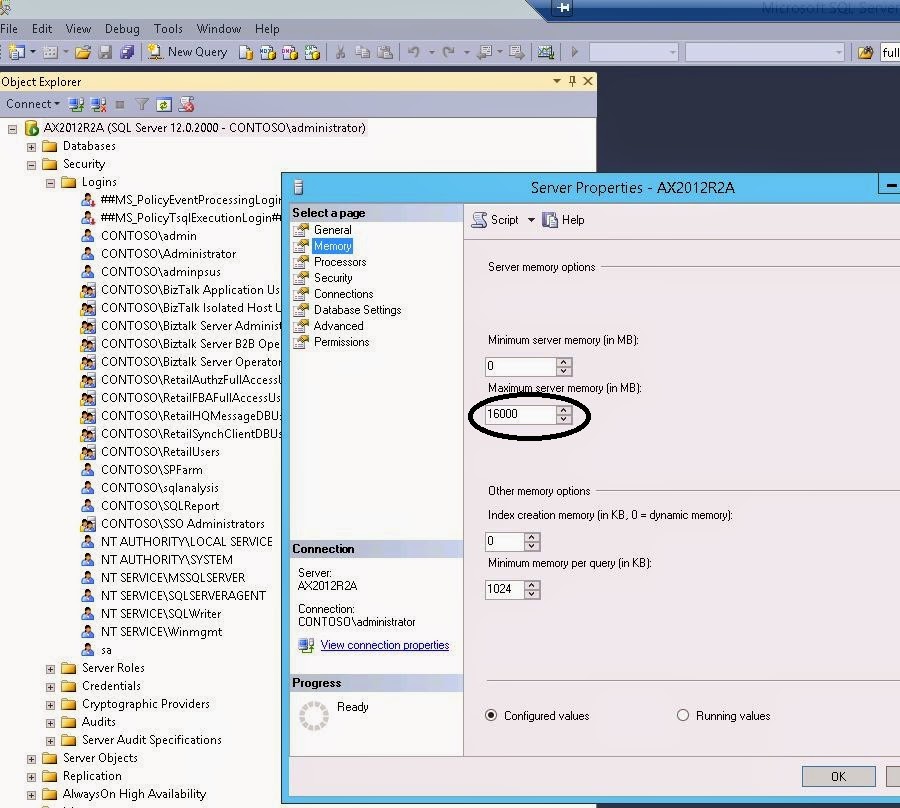
We changed it to 16 GB and then all the applications started to perform better. If anyone, facing performance issues on VM, can give the above tip a try! Happy Daxing :)
Recently, we had an issue where the AX 2012 R3 Demo VM was performing very sluggish. Opening up AX Client or SQL or Office application were taking lot of minutes.
Initially, we tried to stop some services (like Mobile Connector, Retail Services, Sharepoint services etc) but no luck.
Next, we increased the RAM on VM to 64 GB but still no luck!
Finally, after some troubleshooting we found the culprit was SQL Server as by default the Max memory configured on the VM was 2 GB.
We changed it to 16 GB and then all the applications started to perform better. If anyone, facing performance issues on VM, can give the above tip a try! Happy Daxing :)
Troubleshoot Dynamics AX 2012 AIF Error File cannot be opened because the submitting user could not be determined
Dear Friends,
Hope you are having a great start to the weekday. I had a great relaxing weekend, No AX for couple of days :).. It's good to catch a break in between as I had been working and testing several integration scenarios using Dynamics AX 2012, CRM, Biztalk and Oracle. There's plenty of posts to come out so make sure to watch out this blog.
Few days ago, while troubleshooting Biztalk Integration with AX 2012 R3, I faced this error
Error:
b. Click to the Port that you would have created. Click ‘Deactivate’ if it is already activated.
c. For the inbound Xml location click ‘Configure’ button. A pop-up with appear with 2 options and check boxes. You need to check the first option ‘Use default owner for Administrators group:’ and then select user from the drop down list. I am assuming that this user is already added as a System Administrator users list in Dynamics AX 2012. Click Ok to save the changes.

Hope you are having a great start to the weekday. I had a great relaxing weekend, No AX for couple of days :).. It's good to catch a break in between as I had been working and testing several integration scenarios using Dynamics AX 2012, CRM, Biztalk and Oracle. There's plenty of posts to come out so make sure to watch out this blog.
Few days ago, while troubleshooting Biztalk Integration with AX 2012 R3, I faced this error
Error:
File
C:\AIFIn\{117634FA-CD67-4F58-B37E-1D92BFFAE050}.xml
cannot be read because the submitting user could not be determined. The default
owner for files created by members of the Administrators group must be set to a
specific windows user or a default file owner should be enabled and specified
in port configuration.
Solution:
Doing some Google search around this error, got me to this link from our fellow AX Blogger http://pyaarey.wordpress.com/2012/02/29/the-file-system-adapter-is-unable-to-read-the-file-fbtsdemo1aifin1-xml-error/
It helped me to solve the issue so, I'm just putting a screenshot around the post so that people can understand how to troubleshoot.
a. Navigate to System Administration => Setup => Services and Application Integration Framework => Inbound Ports.
b. Click to the Port that you would have created. Click ‘Deactivate’ if it is already activated.
c. For the inbound Xml location click ‘Configure’ button. A pop-up with appear with 2 options and check boxes. You need to check the first option ‘Use default owner for Administrators group:’ and then select user from the drop down list. I am assuming that this user is already added as a System Administrator users list in Dynamics AX 2012. Click Ok to save the changes.
Sunday, September 21, 2014
Troubleshoot Biztalk Server 2013 Error Failed to Load Group Data Providers
A few days ago, I have been doing some Biztalk configuration and Troubleshooting for one of my client.
Background:
I was working on a box where Biztalk was installed by an ex-contractor who had left the company.
Now, I wanted to Launch Biztalk Server Administration via my login and whenever I try to launch it comes up with this error

Solution:
I had added my userid to the Biztalk Server Administrators group on that computer, and I thought it should have worked becoz that group had enough permissions on SQL Server databases of Biztalk.
However that didn't work and after some troubleshooting, I found that adding my userid directly to SQL and giving my userid permissions to Biztalk databases solved the issue.
Subscribe to:
Posts (Atom)