Total Pageviews

Search This Blog

Showing posts with label Dynamics 365 for Operations. Show all posts

Friday, May 26, 2017

How to configure ARM(Azure Resource Manager) before deploying your Dynamics 365 for Operations environment

Greetings!
Since August 2016 - Platform 2 Update, for deploying any new Dynamics 365 for Operations environment, configuring ARM is a pre-requisite. Through this article, I want to share my experience and few tips/troubleshooting steps which I had come across while configuring ARM
What is ARM?
ARM (Azure Resource Manager) groups the resources required for your Dynamics 365 for Operations instance in the cloud-based Azure OS.
Resources can be your:
a. Dynamics 365 for Operations Virtual Machines (DEMO, SANDBOX, DEVTEST)
b. Storage Accounts
c. Virtual networks
d. Databases
e. 3rd party Services
Azure Resource Manager enables you to work with the resources in your solution as a group. 
We can use a template for deployment and that template can work for different environments such as testing, staging, and production. 
Let's now talk about how to configure ARM before deploying a new Dynamics 365 for operations environment.
So, once you are in your LCS (LifeCycle Services) page, before deploying your environment, you will need to set up Azure subscription, so click on Microsoft Azure Settings
Once you click on Microsoft Azure Settings, you will see the below page where you need to Authorize the tenant administrator of the organization, access to Dynamics 365 for operations application. For this, you will need to click the Authorize Link under the Organizational list group.

A new window gets opened as shown below where you have to enable Dynamics Deployment Services.
On pressing the Accept button, this grants access for Dynamics Deployment Services into your Azure Active Directory. Go back to the previous page and under Organization list settings and click again on Authorize. Refresh the browser and you will see the Authorization status as Authorization complete, as shown below:
Tip - At times, I have seen you have to click on the Authorize button multiple times to get the status as "Authorization complete"
Go back to Azure Connectors and click - Add
Enter any name and your Azure Subscription ID
Enable Configure to use Azure Resource Manager (ARM) and change the Azure subscription AAD Tenant Domain
Tip - You have to select Dynamics Deployment Services - Contributor and then click on Next button, failing to do so will not perform the validation
For the next step, that is to provide authorization, you will need to either:
a. Download and upload the Management Certificate, OR
b. Go to Access Control Panel (IAM) in your Azure portal and ensure that the tenant which you are using is added as part of contributor role in AAD
For Option a, that is uploading the management certificate, you will need to log into your Classic Azure Portal, to upload the certificate
For Option b, you can do this by launching the New Azure portal and then add the tenant user to the subscription as a Contributor.
Go to More Services > Subscriptions, then select your subscription, and click on Access Control (IAM), then press the (Add) button
Once the above steps are completed, when you go back to your Azure settings page in LCS, Make sure, that ARM enabled is checked for your subscription. Now, you are ready to setup your Azure region and proceed with deploying the environment

Friday, May 19, 2017

Patch up your Dynamics 365 for Operations Servers: Immediate Maintenance required in response to WannaCrypt ransomware

Greetings!
I got half a dozen email since yesterday from Microsoft as I have few Dynamics AX 2012 R3 and few Dynamics 365 for Operations VM running under different subscriptions.
As most of you are aware by now about WannaCrypt virus, Microsoft suggests to patch our Dynamics 365 for Operations VM's at the earliest. Below is an extract of the email form Microsoft
Note: If you do not have any Microsoft Dynamics 365 for Operations or Microsoft Dynamics AX 2012 environments deployed in your own Azure subscriptions, you can ignore this mail.
In response to the recent global WannaCrypt ransomware attack, we recommend all Azure customers that have Dynamics 365 for Operations or Dynamics AX 2012 environments deployed in your own Azure subscriptions, to take the steps called out in the WannaCrypt Attacks: Guidance for Azure Customers blog post. This applies to environments in your subscription like demo and dev environments. Environments managed by Microsoft are already being proactively handled by us. 
Please take the above steps immediately to run a secure infrastructure and to protect your organization from attacks like these today and in the future.
Sincerely, 
The Microsoft Dynamics 365 for Operations service team

Monday, May 15, 2017

How to setup and configure Dynamics 365 for Operations Mobile Workspaces

Greetings!

This is an update to my previous post - https://daxdilip.blogspot.com.au/2017/03/dynamics-365-for-operations-tip-mobile.html, where I shared a workaround on how to view the out of box mobile workspaces from System Administration > Parameters form and publish them.

This workaround is no longer needed as in this post, i will explain the steps on how to achieve the same using standard process:

Overview 

As you are aware, that wiki is being deprecated, and now Microsoft is moving to a new docs site for D365FO help, so keep an eye on Dynamics 365 for Operations Mobile Workspaces as this is the page where Microsoft will publish their upcoming mobile workspaces


At the moment, we have the following workspaces for mobile


Most of the above workspaces are linked to a Hotfix which can be downloaded from LCS

Previously on wiki, We had Inventory on hand and sales order workspaces, but looks like they are not ported to the new Dynamics docs site. 

In this post, I will walk through an example of setting up mobile workspaces for sales order and inventory on hand.

Step 1:

Go to LCS > Project > Issue Search and search for the below KB or just click on this link
KB 4013633


Step 2

Download KB 4013633 (an X++ update or metadata hotfix). This contains four mobile workspaces for supply chain management. 

Step 3

Once you download the hotfix, extract it to your VM where you want to install the hotfix. Since this is a metadata hotfix, this needs to be treated bit differently, as it can't be installed from Asset Library.


Step 4

Log in to your VM and then use the SCDPBundleInstall command

SCDPBundleInstall.exe -install -packagepath=c:\temp\HotfixPackageBundle.axscdppkg -metadatastorepath= J:\AOSService\PackagesLocalDirectory

Tip - Note in some of the later VM's you will find the SCDPBundleInstall in the Bin directory inside PackagesLocalDirectory i.e. J:\AOSService\PackagesLocalDirectory\Bin


Step 5

Once the bundle installation is successful, next step is to go to Visual Studio and create a deployable package as shown below:


Step 7

Once the deployable package is created, go to Asset Library and add the deployable package in software deployable package Asset type


Step 8

Now, you should be able to go to your environment where you want to apply the deployable package and then click on Apply Updates from maintain environment and select the deployable package and start deploying.


The environment will go into Servicing state and no one will be able to use the environment at this point. This may take 1 to 2 hours to get deployed.

Once the package is deployed, you can now go to System Administration > Parameters > Mobile parameters and pubilsh the default mobile workspaces and start using them

Monday, April 10, 2017

How to get to the LCS Downloadable Tools Page

Quick tip - 

Recently, I was looking to download the security tools from LCS and I was not able to find the downloadable tools under the main menu of LCS

Had to type in the below url to get to the downloads page


Tuesday, March 14, 2017

Dynamics 365 for Operations Technical Conference - Day 1 Keynote Session

Friends,

Below some key points from the Tech Conference - Day 1. Around 110 sessions being delivered in the 3 days, so it's not possible to attend all the sessions. I'm summarising my notes:

Day 1 - Keynote Session by Sri Srinivasan, GM for Dynamics 365 for Operations at Microsoft

110 Sessions Being delivered in this Tech Conference (11 Tracks)

Dynamics 365 for Operation Advantages:
  • Purpose Built
  • Productive
  • Intelligent
  • Adaptable

Based on AX2012 R3 CU11

Challenges in ERP Deployments:

  • Change
  • Quality of Data
  • Training
  • Business process change

How Dynamics 365 for Operations Speeds up adoption among end users

Dynamics 365 for Operations Features:

  • Immersive experience
  • Continuous update
  • Effective change management, Data Governance, Complete solutions

Customer Stories:

Maersk
  • Single instance based in US East
  • 7 Global distribution centres
  • 5000 Employees
  • 6 ISV Solutions
  • Entire project implementation in a span of 15 months
  • Intercompany processes
  • 15000 order lines via EDI
  • 550 users live
  • No terminal services, direct connection

PEET
  • Over 100 entities
  • Consolidation
  • Increased awareness of costs
  • Reduction in reporting cycle timeframes
  • Tracking invoices from receipt to payment
  • 6 months Development time

Dynamics 365 for Operations - Record time of implementation with one customer - 40 days


What's Coming

  • Intelligence Insights
  • Productive experiences
  • Continuous life
  • Business anytime, anywhere

Dynamics 365 RoadMap - https://roadmap.dnamics.com


Dynamics 365 One View App Demo built on top of Common data service

Spring 2017 Release
  • Hybrid / On-Premises
  • Around June 2017 timeframe,  local support to run in your own datacenter
  • Upgrade framework AX 2012 R3
  • Extensibility - How to keep customers current and using extensions
  • Extensions to configure and customize the applications
  • Power BI Content Pack  - drill through into details
  • In the spring release, 10 Power BI Dashboards to be released
  • Customer Ageing Report in mobile device
  • Expense Management Mobile Demo
  • Offline capability
  • Power BI Content Pack Credit collections
  • Preview version of AX 2009 Upgrade

Common Data Service  (A view into Product Insights)

  • Ability to customers having visibility to their product life cycle(Design , marketing, seel, manufacturing, distribute, service)
  • Brings the data together from disparate data sources - bring data into one common area
  • Product Graph - the name of the project for bringing common data services together
  • Product Explorer - can take data from different data sources like SAP, CRM, and put together and relate it
  • Product Explorer - Filter by Product Attributes
  • Preview in late spring 2017

On-Prem


  • Cloud, Cloud + Edge, Local Business Data
  • Microsoft recommends Cloud as the preferred medium of deployment
  • In June, local business data option would be available - disconnected from cloud, Run in your own data center, scenarios where internet connectivity is problem, data sovereignty issue, enterprises who are yet to buy into the concept of cloud.We will not have Power BI, Embedded analytics, machine learning capabilites, product graph, will not be available for on-premise local deployment option
  • Deployment for all 3 options is through LCS
  • The 3rd deployment option is hybrid - combine power of cloud + immense potential of data centers, Federated instances, each manufacturing instance can run , syncrhronizing data into cloud, no other erp provides this
  • Demo on cloud + edge
  • The synch happens in the background, Demo to create a sales order in edge and it comes into cloud (master) - Preview in Spring

Tuesday, March 7, 2017

Dynamics 365 for Operations Tip - Mobile workspaces option missing under System Administration

Friends,

Recently, I provisioned a brand new Dynamics 365 for Operations Environment with Update 3 (November 2016 update) + patched it up with KB 3215650 - this is the KB which enables the mobile workspaces that are provided in your Microsoft Dynamics 365 for Operations.


Issue:

Unable to see the Mobile App Option under System Administration - System Parameters. Did some troubleshooting like restarting the AOS Service but with no luck


Workaround:

After some troubleshooting, I went to Visual Studio, opened up the object class SystemParameters_SCMMobileExtension which does the job of adding the mobile option. I explicitly did a build and synchronize for this object and then voila! :)


Dynamics 365 for Operations not supported on Firefox browser 51.0.1


Just found that Dynamics 365 for operations doesn't render on the latest Firefox browser.


Saturday, February 25, 2017

Dynamics 365 for Operations - Exciting Announcement regarding On-Premise Deployment

Greetings!

Wanted to share this exciting news which many customers were looking forward to - Having an on-premise deployment of Dynamics 365 for Operations - aka Dynamics AX 7

Sri Srinivasan, GM for Microsoft Dynamics 365 for Operations, has announced this in the community forums

https://community.dynamics.com/b/msftdynamicsblog/archive/2017/02/23/the-right-cloud-option-for-your-business

Thursday, January 5, 2017

Dynamics 365 for Operations - Troubleshooting HTTP 500 HttpCompileException Error


Dear Friends,

Hope you had a great start to the New Year! :-)

I'm excited and pumped up as I unlearn and learn more about Dynamics 365 for Operations. Recently, on one of my D365 Dev VM, I encountered the below HTTP 500 error after a successful VS Build.

No longer, I was able to browse the url. 

Error:

Troubleshooting:

Initially, I thought it was related to my custom model, so I deleted that from the packages directory, did an iisreset, stopped and started D365 services, SQL Services, restarted the whole box, but no luck.


Event Log Details:

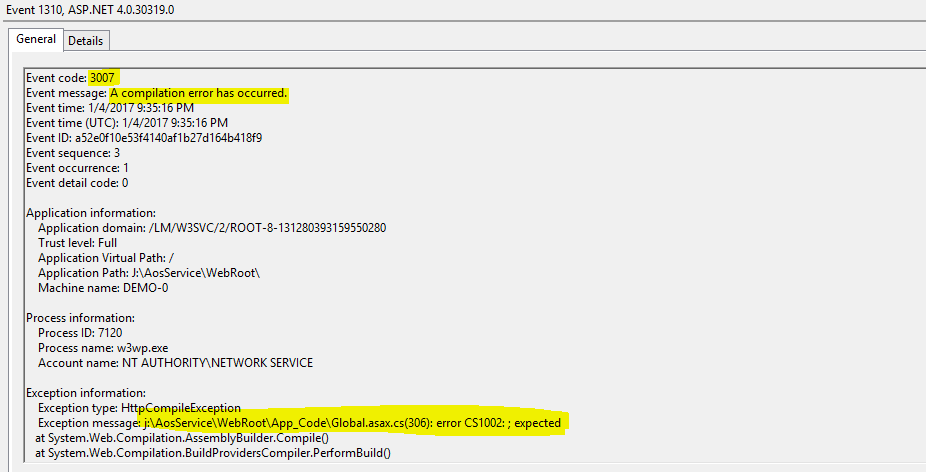
Next, I dig a little bit into the event log, to find more about the errors logged there and i found this below message log - error CS1002 expected;


Next, I opened the cs file in VS and found for some reason the opening brace in Application_PreSendRequestHeaders was commented which was just weird, Don't know how it could have happened. 

Fix was to remove the comment and then save the Global.asax.cs file and that got me back to business.


Happy Operating D 365 :-) Have fun.

Saturday, November 19, 2016

Quick Tip - Dynamics 365 for Operations - How to change the runtime entity for VS Admin user

Greetings All,

Update [05/01/2017] - Another way to update the company is to go into your VS Project properties as shown below:


A quick tip - While executing your VS Code and if the browser opens up with a different entity as circled below in the screenshot.


A quick way to change the entity you want is go to AX and then System Admin > Users > Select the Admin user (- this was in my case) and then change the company to the one you intend and next time when you run your VS project, browser will display the right entity.