Total Pageviews

Search This Blog

Showing posts with label Dynamics AX 7. Show all posts

Wednesday, February 7, 2018

How to Install Dynamics 365 for Finance and Operations Platform Update on a Disconnected Local Developer VM

Steps to Install Dynamics 365 for Finance and Operations Platform Update on Local Developer or a Demo VM

Greetings Dear Friends!

Hope you all had a great start to 2018! :)  

It's been a while, since I did a blog post. The reason being super busy with implementing Dynamics 365 For Finance and Operations and Retail for few clients of mine. As, I'm now doing consulting for my own business, it really gets hard to find time to do a detailed blog post.

In the last 3 years since Dec 2015, I have been extensively working on the new version since it was called Dynamics AX 7 on TAP Programs, delivering training to partners and customers, Implementing and Upgrading to Dynamics 365 For Finance and Operations, Implementing Dynamics 365 For Retail and integrating between CRM (Sales) and Operations via Common Data Services. I will share that experience in a different blog post.

For now, Let's get started with this post. In this particular post, I'm putting down the steps involved to install Platform Update 11 on a Local Developers VM.   

Microsoft is doing a pretty good job with their docs site where they have listed the instructions on how to do a PU on Cloud and disconnected VMs. Have a look at the link below


My post supplements Microsoft's documentation and additionally it lists down the steps with some more details and screenshots and towards the end of this post, you will notice how I validated and verified if my PU installation was successfully done.

a.       Download the latest platform update package (zip) file from LCS

b.       Go to LCS >  Your Project and then navigate to Asset Library by clicking on the breadcrumb bar

c.       Once you are in the Asset Library page, click on Software deployable package as shown above.           will start downloading the package. Note it’s around 700 MB so it might take 5 to 10 mins 
       depending on your bandwidth, to download.

d.       Once it’s downloaded copy the Platformupdate.zip file into your local vm and Extract the zip                file to your local drive (I created a folder called PlatformUpdate11)

e.       Next, Open the DefaultTopologydata.xml file from E:\PlatformUpdate11\AXPlatformUpdate
          Replace the machine name from the localhost to your VM name


f. 
g.     Open command prompt from the VM (as Admin), and then navigate to the Extracted folder to run the command AxUpdateInstaller.exe list (This will help to determine the components and their versions which are installed on your local dev box)


h.      


    Prepare the string for <ServiceModelList> as shown below

<ServiceModelList>
        <string>AOSService</string>
        <string>ALMService</string>
        <string>BIService</string>
        <string>DevToolsService</string>
        <string>DIXFService</string>
        <string>MROneBox </string>
        <string>PayrollTaxModule</string>
        <string>PerfSDK</string>
        <string>ReportingService</string>
        <string>RetailCloudPos</string>
        <string>RetailHQConfiguration</string>
        <string>RetailSDK</string>
        <string>RetailSelfService</string>
        <string>RetailServer</string>
        <string>RetailStorefront</string>
        <string>SCMSelfService</string>
</ServiceModelList>

i.         Your final DefaultTopologyData.xml should look as below:


j.        Generate the runbook

AXUpdateInstaller.exe generate -runbookid="LocalDev-runbook" -topologyfile="DefaultTopologyData.xml" -servicemodelfile="DefaultServiceModelData.xml" -runbookfile="LocalDev-runbook.xml"


k.       Import the runbook file

AXUpdateInstaller.exe import -runbookfile="LocalDev-runbook.xml"

l.        Verify the runbook file

AXUpdateInstaller.exe list

       Execute the runbook

AXUpdateInstaller.exe execute -runbookid="LocalDev-runbook"
This will take some time as it starts executing each of the steps in the runbook.

The most time consuming step as per my observation is backup of the AOS Service

After 15 to 20 mins, it will come up with a message Everything is OK and will be static for more than 15 mins, but don’t abort it, still the scripts are running in the background, Let it finish.


After 2.5 hours, it progressed to the next Step 27


Once you notice, The step completed message and it comes back to the prompt, that means all the steps in runbook are executed and now you can move on to the next command


n.      Export the runbook

AXUpdateInstaller.exe export -runbookid="LocalDev-runbook" -runbookfile="LocalDev-runbook.xml"

Exporting the runbook will be useful for future references:
o    For e.g. to analyze the downtime requirements for production, and so on.
o    To send the file to Microsoft in the event of failure to install a deployable package.

o.      Verify if the components are updated correctly.

Run AxUpdateInstaller.exe list command and see the updated components. Note the difference in version numbers

Update 11:


p.       


    Also note, your Visual Studio Extension for D365 gets automatically updated as part of the Update 11

How to check new VS Extension:

Open Visual Studio -> Go to Help > About Visual Studio and check in installed Products list. We should be able to see the latest version of the VS Extension – Dynamics 365 Unified Operations Platform 7.0.4679.3516


Check the update PU 11 version from the browser:


That's all for now. Hope it gives you an idea on how to do a PU Update on a Local Developer's VM. Note, each PU Update may have slight differences here and there, so I always recommend to visit the Microsoft docs site to get the up-to-date documentation before you perform these steps.


Thursday, January 5, 2017

Dynamics 365 for Operations - Troubleshooting HTTP 500 HttpCompileException Error


Dear Friends,

Hope you had a great start to the New Year! :-)

I'm excited and pumped up as I unlearn and learn more about Dynamics 365 for Operations. Recently, on one of my D365 Dev VM, I encountered the below HTTP 500 error after a successful VS Build.

No longer, I was able to browse the url. 

Error:

Troubleshooting:

Initially, I thought it was related to my custom model, so I deleted that from the packages directory, did an iisreset, stopped and started D365 services, SQL Services, restarted the whole box, but no luck.


Event Log Details:

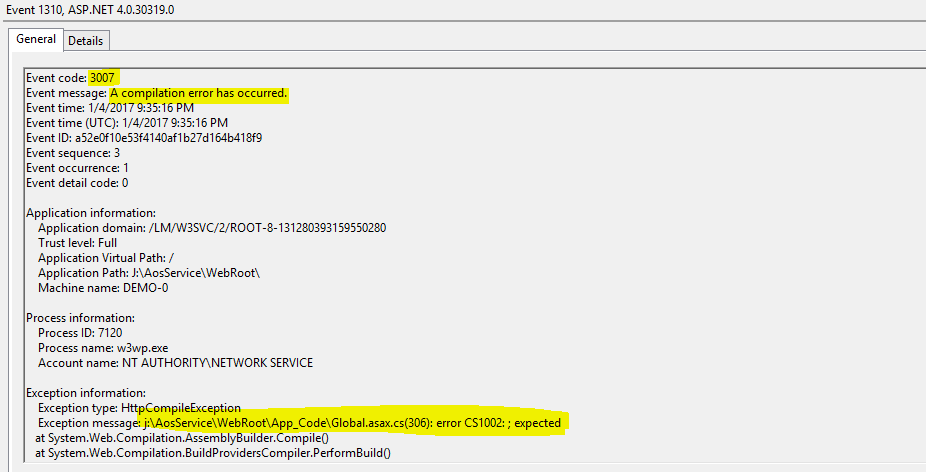
Next, I dig a little bit into the event log, to find more about the errors logged there and i found this below message log - error CS1002 expected;


Next, I opened the cs file in VS and found for some reason the opening brace in Application_PreSendRequestHeaders was commented which was just weird, Don't know how it could have happened. 

Fix was to remove the comment and then save the Global.asax.cs file and that got me back to business.


Happy Operating D 365 :-) Have fun.

Saturday, November 19, 2016

Quick Tip - Dynamics 365 for Operations - How to change the runtime entity for VS Admin user

Greetings All,

Update [05/01/2017] - Another way to update the company is to go into your VS Project properties as shown below:


A quick tip - While executing your VS Code and if the browser opens up with a different entity as circled below in the screenshot.


A quick way to change the entity you want is go to AX and then System Admin > Users > Select the Admin user (- this was in my case) and then change the company to the one you intend and next time when you run your VS project, browser will display the right entity.


Tuesday, September 20, 2016

Quick tip - How to acivate demo data for Fleet Management in AX 7


Greetings!

Fleet Management is a custom module introduced in AX 7 for demo and training purpose and we have some tutorials around fleet management.

The other day I was putting up a quick demo around reservation management workspace and found the workspace empty with no data in it.

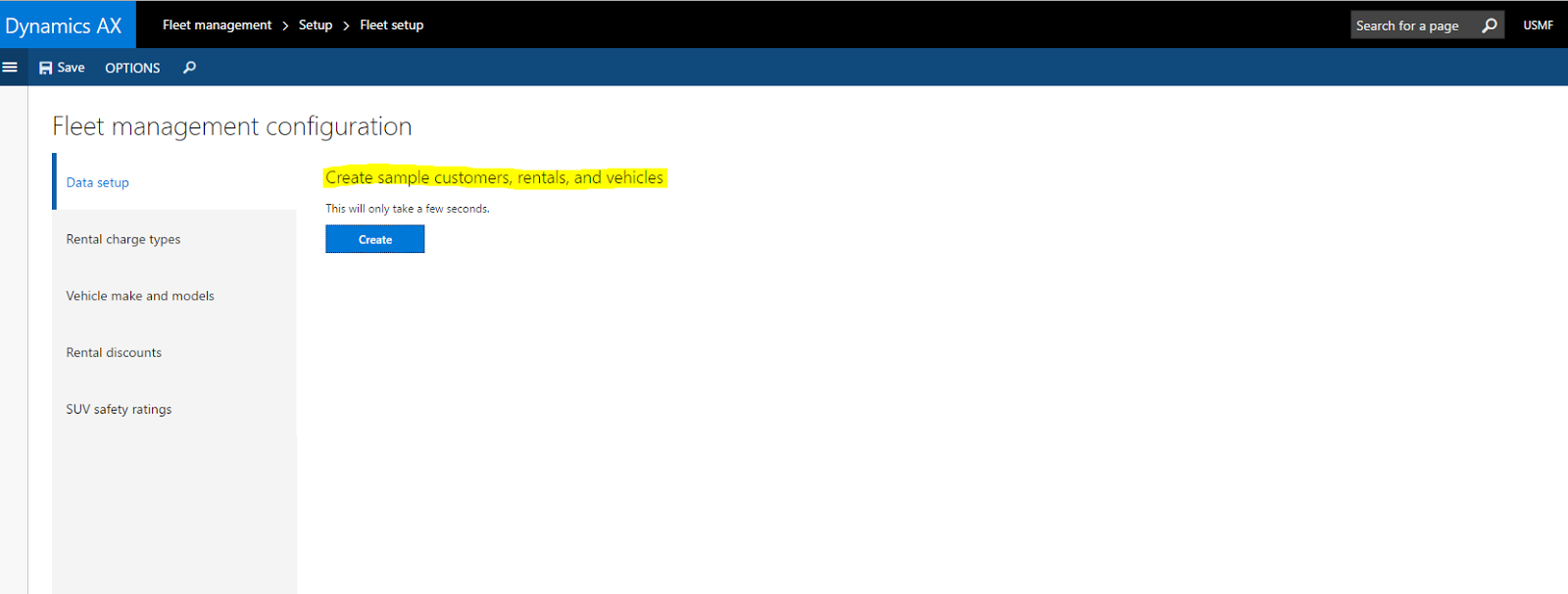
A quick way to activate Fleet Management with demo data is to go to

Fleet Management > Setup > Fleet Setup > Create sample customers, rentals and vehicles


Happy Daxing!


LCS - Monthly Updates

Greetings!
A core component to the new Dynamics AX is LCS and it's recommended to keep an eye on the monthly updates:
        

In August, the following key features were updated:
  • Database Refresh Request - You can request that sandbox environments to be refreshed with DB backups directly from LCS.
  • Methodology Update - Now, you can attach documents to methodology tasks
  • Issue Search - View additional status details for active bugs and subscribe to email notifications when an issue is resolved. View detailed info about the line number and code changes

Thursday, August 25, 2016

New Developer Courses in Microsoft Dynamics Learning Portal

Microsoft Dynamics Learning Portal is a great resource to get started and acquire knowledge on the new Dynamics AX.You will need a partner account or PartnerSource Login to ign into the portal. Some new courses added recently in last few weeks in Dynamics Learning Portal and maybe some interest to developer community:

Monday, May 30, 2016

Dynamics AX 7 Update 1 Released

Dear All,

Just letting you know Microsoft has released Update 1 for AX 7. You can read more about this release and What's New Over here - https://ax.help.dynamics.com/en/wiki/whats-new-or-changed-in-dynamics-ax-7/

The steps for deploying this update from LCS onto your environments are listed in the release notes over here - https://blogs.msdn.microsoft.com/lcs/2016/05/27/may-2016-release-notes/


Monday, January 4, 2016

A quick peek into the new Dynamics AX 7 Virtual Machine and restarting the new AOS Web App from IIS

Dear Friends,

Wish you all a Very Happy New Year and Hope you had a rocking start to 2016!

A few weeks ago, I posted the steps to provision a Dynamics AX 7 Environment on Azure here.

Few days back, I got a chance to  explore the new AX 7 Virtual Machine and thought to share some interesting findings with you.


AX 7 Virtual Machine Configuration:


It's a pretty powerful machine built on Windows Server 2012 64-bit having 56GB RAM and running on 8 cores.


Key Tools/Software included in the box:
Visual Studio 2015  (for AX Development)
SQL Server 2016 
Office 2013 
  
Dynamics AX Server Configuration:

Things have changed on how the AOS Server Configuration is managed. In previous versions of AX, AOS Service was managed as a windows service and we had a Server Configuration Utility under Control Panel to configure and manage AOS instances.

Now with AX 7, All AOS Configurations are stored in IIS

Location of AX 7 packages, source code, and other AOS configurations:


On a Dynamics ‘AX 7’ VM, you can find most of the Dynamics ‘AX 7’ application configuration by opening the web.config file of the AOS Web app. 
  1. Open Internet Information Service (IIS). 
  1. Go to Sites > AOSService. 
  1. Right-click and select Explore, this will open File explorer. 
  1. Find the web.config file and open it in Notepad (or another text editor). 
Web config Path inside Virtual Machine - I:\AosService\WebRoot\web.config 

The following keys are of interest to many developers and administrators: 

Aos.MetadataDirectory – This key points to the location of the ‘AX 7’ packages folder that contains ‘AX 7’ platform and application binaries as well as source code (Source code is only available on development environments.) 


Path to packages in the VM - I:\AosService\PackagesLocalDirectory. 


Image


Aos.AppRoot – This key points to the root folder of the AOS web application. 


DataAccess.Database – This key holds the name of the Dynamics AX 7 database. 

Image


Infrastructure.HostURL - This key holds the Host URL for AX 7


Image


Restarting AOS Web App


If you simply want to restart the AOS (without redeploying), run iisreset from an Administrator command prompt or restart the AosService Web App from Internet Information Services (IIS). 


 Image